
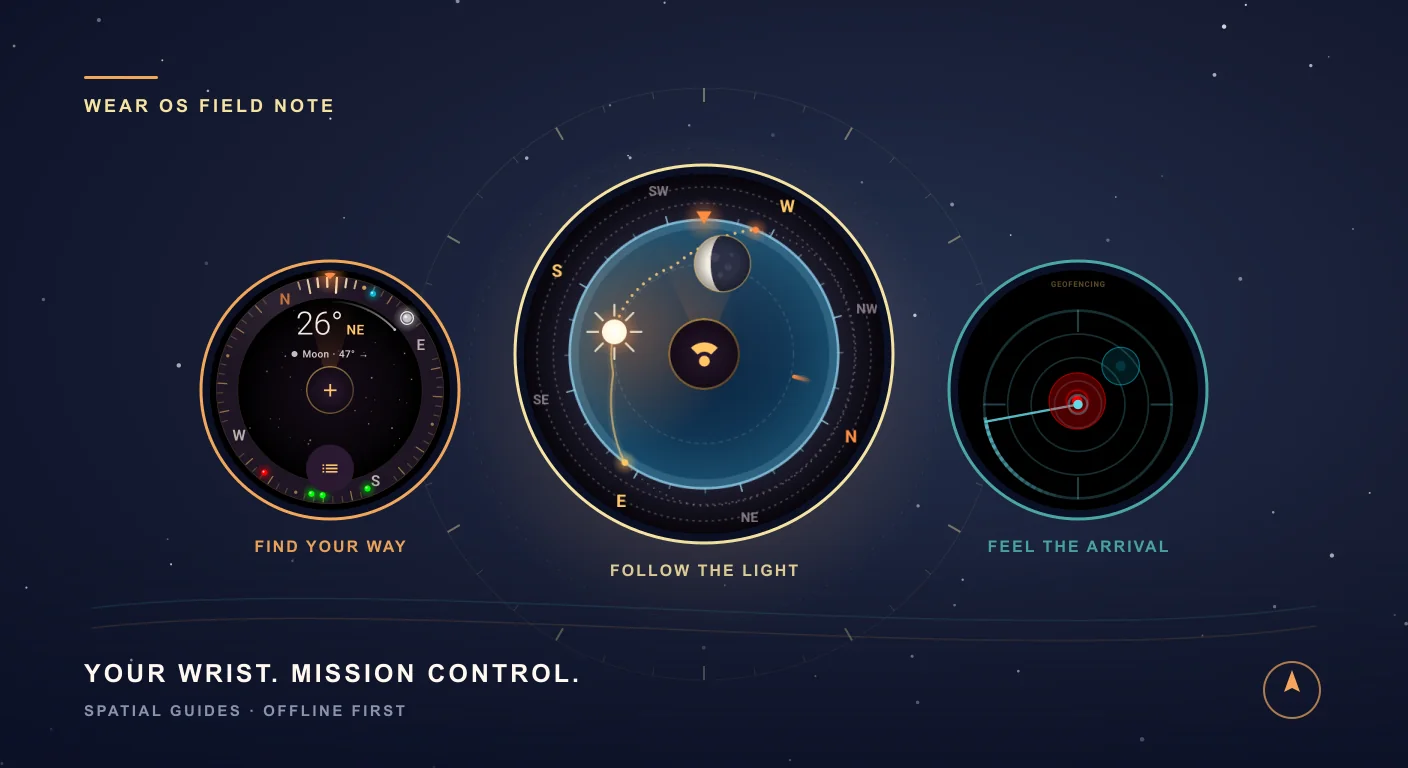
Your watch knows the time. Now it knows the way.
There is a particular kind of magic in leaving your phone in your pocket. The path forks. You lift your wrist. The place you saved is over there. Later, the light starts to soften, and the same little screen shows where the Sun is heading. After dark, the Moon takes its place on the dial. One watch, a whole day of small discoveries.
Put SIMT on your wristOpen SIMT on Google Play and choose your compatible Wear OS watch. Then come back for the tour: these are the tools worth taking outside.Four tools. One very capable little screen.
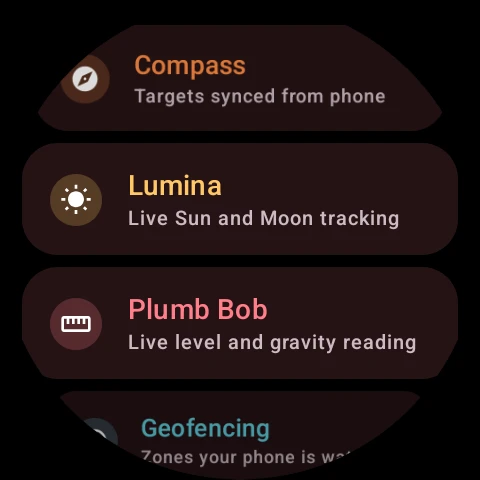
Open SIMT and the watch gives you a simple choice: Compass, Lumina, Plumb Bob or Geofencing. Each tool has its own purpose, its own visual character and a layout made for the round display. Warm compass bearings. A sky that shifts from blue to night. A suspended weight that makes gravity visible. A cool cyan radar for the boundaries around you.
The appeal is how little ceremony there is. You do not need to turn a short question into a phone session. Which direction? Where is the Moon? Am I inside the zone? How far is this tilted? Raise your wrist, open the tool, get your answer.
Compass: give north somewhere useful to take you
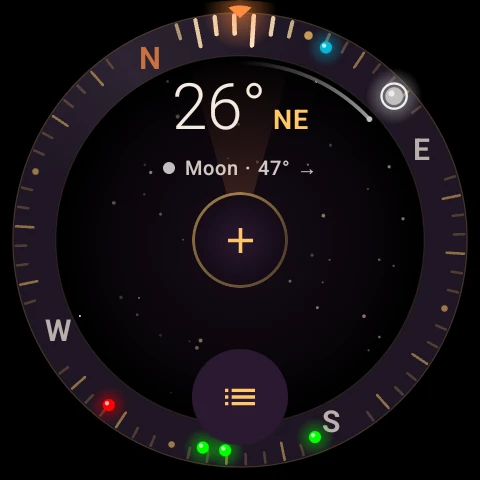
North is a good start. Your campsite, your meeting point or the place you parked is a better destination. SIMT's Wear OS compass brings your synced targets onto a live dial, with colored markers around the rim and a large heading in the middle. Choose a target from the list and a turn cue tells you whether it is ahead, left or right.
Imagine saving your trailhead before a walk, or marking the café where everyone agreed to meet. When you want to orient yourself again, the destination is already on your wrist. The guidance is a bearing toward a target; you still choose a suitable path around buildings, terrain and obstacles.
- Select your destination: browse the target list and bring the place you care about into focus on the compass.
- Save the moment: tap the add-location control to capture your current position when a location fix is available. The target is queued for synchronization to your phone.
- Choose what travels with you: control predefined and sky-target syncing in Settings, and switch between the target clusters supplied by your phone.
- Keep useful places close: previously synced targets remain cached when the phone connection drops. New phone changes arrive when the devices reconnect.
The watch also surfaces missing sensors and low compass accuracy. Clear guidance starts with knowing when a reading needs attention.
Lumina by day: wear a little piece of the sky
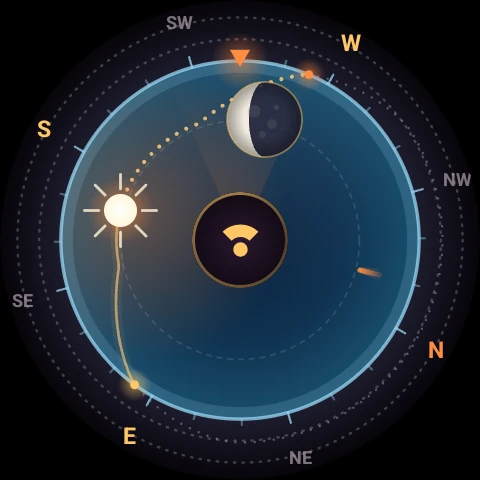
Some screens give you a number. Lumina gives you a sense of the day. Its circular sky places the Sun and Moon around you, draws the Sun's path and turns with your heading. The palette follows the light, so the instrument feels connected to the world beyond the glass.
For a photographer scouting a composition, that means checking where the Sun sits before choosing a viewpoint. For a camper, it means understanding which side of camp faces the evening light. For anyone out for a walk, it is a lovely excuse to look up.
Tap the Sun for its bearing, elevation, distance, rise and set times, and highest point when those events are available. You can also inspect its calculated shadow direction and relative length while the Sun is up. Tap a detail row to open that reading on its own screen. Lumina has bearing calibration, too, so you can adjust the dial's alignment when needed.
Lumina after dark: the Moon has a place on your wrist
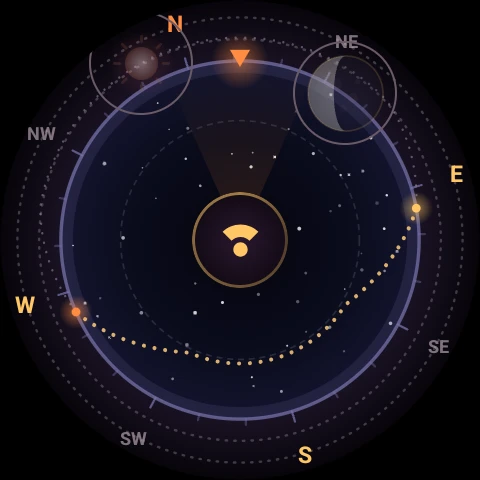
Evening changes the mood. The blue gives way to a darker sky, the stars come forward and the Moon keeps its own illuminated shape. Bodies below the horizon are dimmed. The dial lets you see where the Sun and Moon are in their daily story, including the parts hidden beneath your feet.
Open the Moon details for phase, illuminated percentage, bearing, elevation and distance, plus rise, set and highest-point times when available. It is an easy way to turn what is the Moon doing tonight? into something you can actually explore.
The astronomy calculations run on the watch, using your location and time. Once a usable location is available, there is no sky-data download standing between you and the view. Lumina is particularly at home at a quiet campsite, a rural viewpoint or anywhere the evening is more interesting than your reception.
Keep reading Want to take the sky exploration further? The Android phone app adds planets, satellite tools and the Orrery. This guide explores that larger astronomy toolkit.Offline Astronomy App for Planets, Moon Phases, Satellites, and Sky Tracking Most astronomy apps depend on a constant internet connection. SIMT calculates planetary positions, Moon phases, satellite passes, and celestial targets entirely on device, so the sky tools keep working even when you are off the grid.Geofencing: let the boundary tap you on the wrist
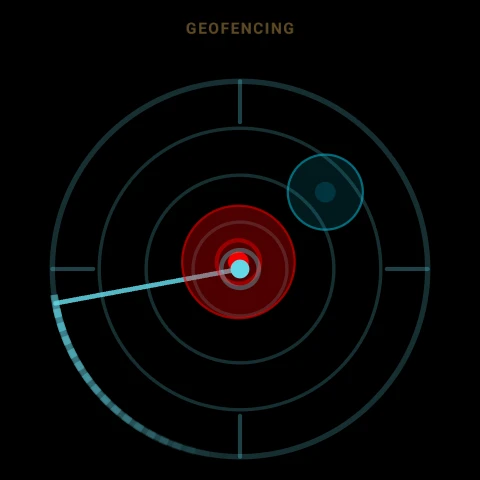
A saved place answers where? A geofence adds tell me when I cross the edge. Configure an alert zone around a target on your phone and SIMT brings it to the watch, where a radar view shows the zones around your position. Open the zone list to inspect names, radii, distances and entry or exit settings.
The useful part can happen while the screen is off. With location access and background location granted, the watch can monitor zone crossings through the platform geofencing service. Entry uses one long vibration; exit uses two short pulses. Grant notification permission for a named alert on screen as well. You can learn to feel the difference between arriving and leaving.
Think of a reminder as you approach the area around a meeting point, or a nudge when you leave the zone you set around camp. Configure the zone on your phone, let it sync, and the watch adds a little awareness without asking for constant checking. Crossing detection depends on location quality and platform behavior, so give the zone a practical radius and treat alerts as convenient reminders rather than exact boundary alarms.
Plumb Bob: gravity, now playing on your wrist
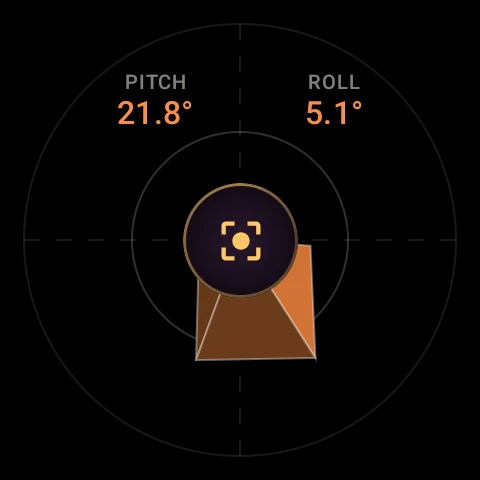
Then there is the tool you may not expect to love on a watch: a tiny, living plumb bob. A 3D weight hangs from the center of the display, leaning with gravity while pitch and roll appear above it. Move the watch and the geometry makes the tilt immediately understandable.
Set zero to compare against a reference angle, then reset to return to the gravity reference. Visual feedback and a haptic cue help you notice when it reaches level. The tool uses local sensor readings, so it does not need a phone connection or internet.
Use it for a quick tilt check or comparing an angle while setting up a camera or a small project. For a surface measurement, take the watch off and hold it still with a consistent contact reference: a curved case or strap can change how it sits. Consumer watch sensors make this a handy aid, not a certified construction instrument.
Keep reading The phone's Plumb Bob uses the same underlying gravity physics. Explore how the tool works and how to get useful readings from it.How to Check Plumb and Level With Your Phone: SIMT's Plumb Bob A real plumb bob is a weight on a string that shows exactly where down is. SIMT puts one in your phone: a 3D pyramid that hangs along Earth's gravity vector and tells you, to a fraction of a degree, whether a wall is plumb, a counter is level, or a frame hangs straight — with no internet, no spirit level, and no magnetometer to fight.A day out, with fewer reasons to reach for your phone
The real upgrade is the way these tools fit together. Save a place. Orient yourself. Read the light. Notice a crossing. Check an angle. Each is a small action; together, they make the watch feel like something you brought for the adventure.
- The weekend wanderer: sync your trailhead and meeting point, then use the target compass for quick orientation along your chosen route.
- The photographer chasing evening light: check the Sun's direction and set time in Lumina, then use Plumb Bob as a quick tilt reference during setup.
- The camper who keeps looking up: inspect the Moon's phase and rise time, and keep a saved camp target on the compass.
- The everyday explorer: set up a useful zone on the phone and let the watch remind you when you enter or leave it.
Your next adventure does not need more screen time. It needs a screen that knows what to show you.
What works offline, and where the phone fits in
SIMT gives the watch real work of its own. Plumb Bob runs locally. Lumina calculates locally, with a usable location and the correct time. The compass can keep displaying cached targets after a disconnect; updated bearings depend on the available heading and location data.
The Android phone is where you manage the target collection and configure alert zones. A phone-watch connection is needed to exchange those changes. Targets captured on the watch are queued for later delivery, so reconnect to complete the sync. Geofence monitoring additionally needs the appropriate watch permissions and platform location services.
The app includes English, French, Arabic and Spanish resources, with layouts that account for round screens and larger text. Supported sensors and Google Play compatibility vary by watch; check the listing for your device.
Give your watch something worth raising your wrist for
- Open the SIMT Google Play listing and install it on your compatible Wear OS watch. Install or update SIMT on your paired Android phone for target and zone syncing.
- Enable Wear OS synchronization in the phone app, keep the devices connected and let your targets arrive on the watch.
- Open SIMT on the watch and choose Compass, Lumina, Plumb Bob or Geofencing. Grant location when you use a location-based tool; allow background location and notifications if you want the corresponding geofence alerts.
- Start with one useful target and one curious question about the sky. The rest of the toolkit is there when you need it.
A place to find. A sunset to catch. A little more awareness of the world around you. SIMT puts those possibilities within a glance.
Install SIMT for Wear OSMake your next wrist check a little more interesting. Get SIMT on Google Play and take the toolkit outside.Questions answered in this guide
What features does SIMT have on Wear OS?
SIMT for Wear OS includes a target compass, a synced target list, current-location capture, Lumina Sun and Moon tracking, geofencing with entry and exit alerts, and a Plumb Bob digital level with pitch, roll and set-zero calibration. Settings let you control predefined and sky-target syncing and switch phone-supplied target clusters.
Does SIMT for Wear OS work without internet or a connected phone?
Plumb Bob uses local sensors, and Lumina calculates Sun and Moon data on the watch once it has a usable location and time. Previously synced targets remain cached after phone disconnection. A phone-watch connection is needed for new target and alert-zone changes; guidance and geofence alerts also depend on available sensors, location services and permissions.
Can I track sunrise, sunset and Moon phases on my smartwatch?
Yes. SIMT's Lumina shows the Sun and Moon on a live sky dial. Body details include bearing, elevation, distance, and rise, set and highest-point times when those events are available. Moon details add phase and illumination; Sun details add calculated shadow information while the Sun is above the horizon.
How do SIMT geofence alerts work on Wear OS?
Configure a target's alert zone in SIMT on your Android phone and sync it to the watch. With fine and background location permissions, the watch can monitor configured crossings through platform geofencing. Entry uses one long vibration and exit uses two short pulses. Notification permission enables named on-screen alerts. Timing depends on location quality and platform behavior.
Can I save my current location from the SIMT watch app?
Yes. With location permission and an available fix, use the compass's add-location control to save a target. It appears locally as a queued target and is sent to SIMT on your phone when a connection is available. Reconnect the devices to complete synchronization.
Does the SIMT watch compass provide turn-by-turn routes?
The target compass provides directional bearings and left, right or ahead cues toward the selected target. It does not calculate a walking route around obstacles. Choose a suitable path yourself and account for the terrain and the quality of the heading and location readings.
How do I install SIMT on my Wear OS watch?
Open SIMT on Google Play and select your compatible Wear OS watch, or find the listing through the watch's Play Store. Install SIMT on your paired Android phone and enable Wear OS synchronization for target and alert-zone exchange. Google Play shows whether your particular watch is compatible.
More from SIMT Blog
Astronomy guide
Offline Astronomy App for Planets, Moon Phases, Satellites, and Sky Tracking
Most astronomy apps depend on a constant internet connection. SIMT calculates planetary positions, Moon phases, satellite passes, and celestial targets entirely on device, so the sky tools keep working even when you are off the grid.

Measurement field note
How to Check Plumb and Level With Your Phone: SIMT's Plumb Bob
A real plumb bob is a weight on a string that shows exactly where down is. SIMT puts one in your phone: a 3D pyramid that hangs along Earth's gravity vector and tells you, to a fraction of a degree, whether a wall is plumb, a counter is level, or a frame hangs straight — with no internet, no spirit level, and no magnetometer to fight.